For many years I have been asked to help people when they tell me computers have lost or broken their work. Not explain what caused the calamity or what can be done to stop it happening again. But I try.
Sadly, people often ignore my advice, advice gained over many decades of thought and bitter experience. And after they’ve ignored my advice they continue to struggle.1
But I’m a masochist, so…
What follows might not help you but I had to write it. A catharsis2 or a venting?3
Make a system you understand and go with it for every document you save.
Contents
Read the screen
Back in the day, when the MS-DOS operating system ran most home and business PCs, and Windows 3.1 was still gaining traction, I took an AutoCAD evening class at a nearby town’s technical collage. The course was intended for beginners, even people who’d never previously used a computer.
The teacher’s first recommendation was this:
“Read the screen.”
Computers at that time didn’t have much of a graphical interface and screens had a particularly low resolution. But the fact remains true to this day – a well-written program has both explicit status indicators and menus that adapt to the context of what the user wishes to do next.
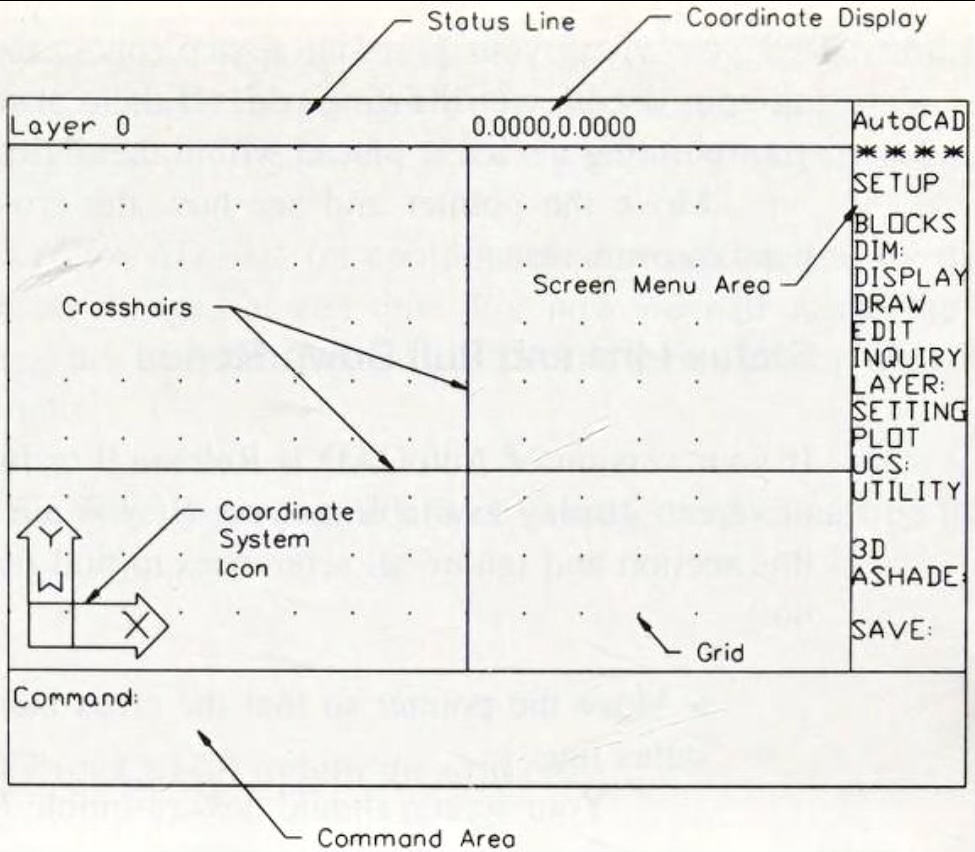
People are often too busy to ‘read the screen’ and follow the same sequence every time and dismiss error messages without a second thought – they are a few steps ahead before realising there’s actually a problem to fix.
Where to put stuff
Save your files in the most appropriate place for their content. If you have only one folder then save stuff there.
- It’s likely if you use computers mainly for work that you have a folder made for you – maybe on a server, maybe in OneDrive, maybe elsewhere in ‘the cloud’.
- Save your work there. It sounds obvious right?
- Don’t haphazardly save in your nominated folder or in
DocumentsorDownloadsorPicturesortempor in your ‘Recycle Bin’ or on a flash or external drive and think you’ll retain your sanity. Having multiple locations, each of which you’ll struggle to keep up to date, is…
Folder names
Give memorable names to your folders:
New folderandNew folder(1)are not memorable locations.Declaration of IndependanceandUniversal Declaration of Human Rights, though absolutely memorable, are a bit over-the-top for spreadsheets and reports.- I’m not going to suggest what you call them, just do it consistently. Imagine I’m looking over your shoulder.
Filenames
Name your documents appropriately, for example:
- Instead of thinking that
Mind map.docxis appropriate, remember you might want to create more than one.Mind map(2).docxis silly and tells the future you nothing about its contents. You also risk overwriting the first with the later, and requiring the services of your IT people to bail you out. - Filenames should tell you what’s in them, for instance
Assignment 03-21 Mind map.docxis better but you’d need to remember what ’03-21′ means. - Again I’m suggesting nothing specific, remember though, your memory might next week not be as sharp as it was last week.
Sorting
If you cannot remember the name of the file you just created don’t despair or blame the computer for losing it.
- Click on the folder’s date column heading until the most recent file is at the top.
- If it’s the file you’re looking for, great!
- If clarity is needed then rename the file to something memorable if it isn’t already (see above).
- When you’ve finished don’t forget to re-sort by clicking on the name column heading to sort alphabetically. But you don’t have to, just remember to be consistent to your system.
File extensions
Turn on the display of file extensions. By that I mean the bit after the dot ‘.’ – for instance filename.docx denotes that the file is a document you can open in Microsoft Word or any similar wordprocessor application.
- Scrolling down the list of files immediately differentiates between docs, sheets, pictures, CAD files. Forget peering at tiny icons, peer at tiny text instead.
- From a security perspective
Flange.docx(a Word file) is not the same asFlange.docx.zip(a zip file) and definitely unlikeFlange.docx.exe(a program file executable by Windows, one that could conceivably carry a virus).
Clipboard
Many people don’t understand how to use a clipboard, so here are a few examples of its use.
Copy and paste:
- Select some text in a document you’re editing. Find and press
EditthenCopyin the menu at the top of the screen. The text now lives on the page and in an invisible box on the computer called the ‘Clipboard’. Trust me, it does. - Move the editing cursor somewhere else in the document (a blank line maybe?) and find and press
EditthenPastein the menu at the top of the screen. Magic? - Do it again. More magic?
Cut and paste:
- Select some text in a document you’re editing. Find and press
EditthenCutin the menu at the top of the screen. The text now lives only in the clipboard – it’s gone from the page. - Move the editing cursor to a blank line and find and press
EditthenPaste. Lo and behold, it’s back! Phew!
The clipboard contents will persist as long as the computer is turned on. It’s temporary storage though. And in fact the next time something is copied or cut, the previous clipboard contents are erased.
Be aware that some applications behave differently. Excel spreadsheets for instance retain an outline of the text being copied and lose the definition when you’ve finished pasting stuff. Computers are weird. Capricious. Often unintentionally nasty.
v1.0 2026-03-22 (needs a lot of polishing)
- If you’ve found this on Mastodon or elsewhere in the Fediverse it’s unlikely this will be useful to you. It’s also unlikely to be of use to anyone who’d ordinarily ignore my suggestions. But I had an overwhelming urge to write it. Please don’t ask me to explain the primary stimulus. 🙂 ↩
- A 2015 post, ‘Computer assistance required’: https://bt3.com/2014/02/02/computerassist/. ↩
- A 2026 post, ‘Computer assistance rejected’: https://bt3.com/2026/03/21/computer-assistance-rejected/. ↩